

Publish to a folder
When the web server is on the same computer, publish straight into its folder. One command, and the new site replaces the old in one step.
Use this when HotDog runs on the same computer as the web server: your own server, or a VPS where you build the site.
1. Find the web server's folder
The document root is the folder your web server serves pages from. Common ones are /var/www/example.org or /var/www/html. Your web server's settings say which (root in nginx, DocumentRoot in Apache, root in Caddy).
2. Write publish.yaml
In your site's folder, make publish.yaml:

The target's name (local here) is yours to choose.
3. Publish
hotdog-cms publish local
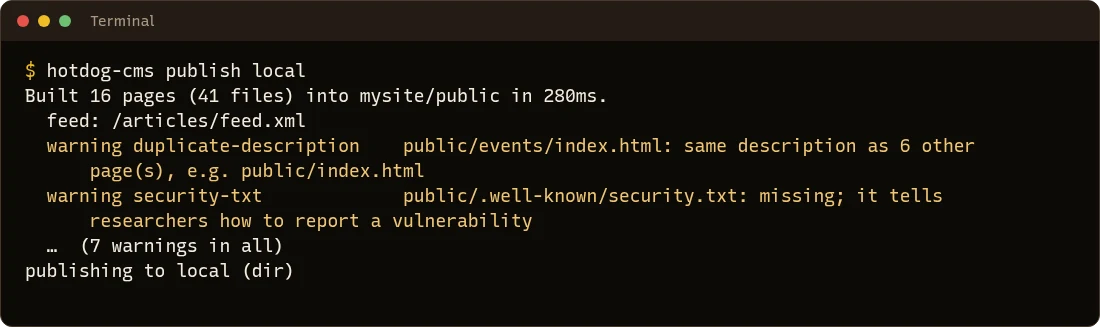
HotDog builds the site, runs the checks, and if there are no errors, puts the new site in place.
How it's safe
- One swap. The new site is written beside the old one, then swapped in, so visitors never see half a site.
- It won't overwrite something else. HotDog only replaces a folder that's empty or that HotDog wrote before. If you give it the wrong path, it refuses rather than wiping it.
- The user publishing needs write access to the document root's parent folder (the swap renames the folder), and nothing more.
Then set up your web server: see Web server settings.