

Start a site
One command makes a new site from the template. A second shows it in your browser, and keeps it up to date as you change things.
What you need
- HotDog CMS installed. If
hotdog-cms versiondoesn't work, see Install. - A terminal, open in the folder where you keep your projects. Your home folder is fine.
1. Make the site
Choose a short name for the folder, with no spaces, such as mysite or bakery-site. Then:
hotdog-cms new mysite
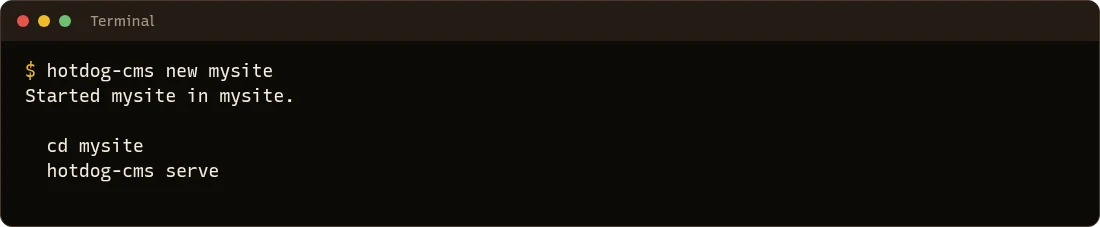
HotDog makes a folder called mysite with a complete site in it, copied from the template: a home page, an about page, a contact form, a privacy page and an example article.
Want a different name on the site? The folder name is also the site's name, until you change it in the settings. You can give it now:
hotdog-cms new -name "Bakery on Main" bakery-site.
2. Look at it
Move into the new folder and start the preview:
cd mysite
hotdog-cms serve

Open http://127.0.0.1:8140 in your web browser. That's your site:
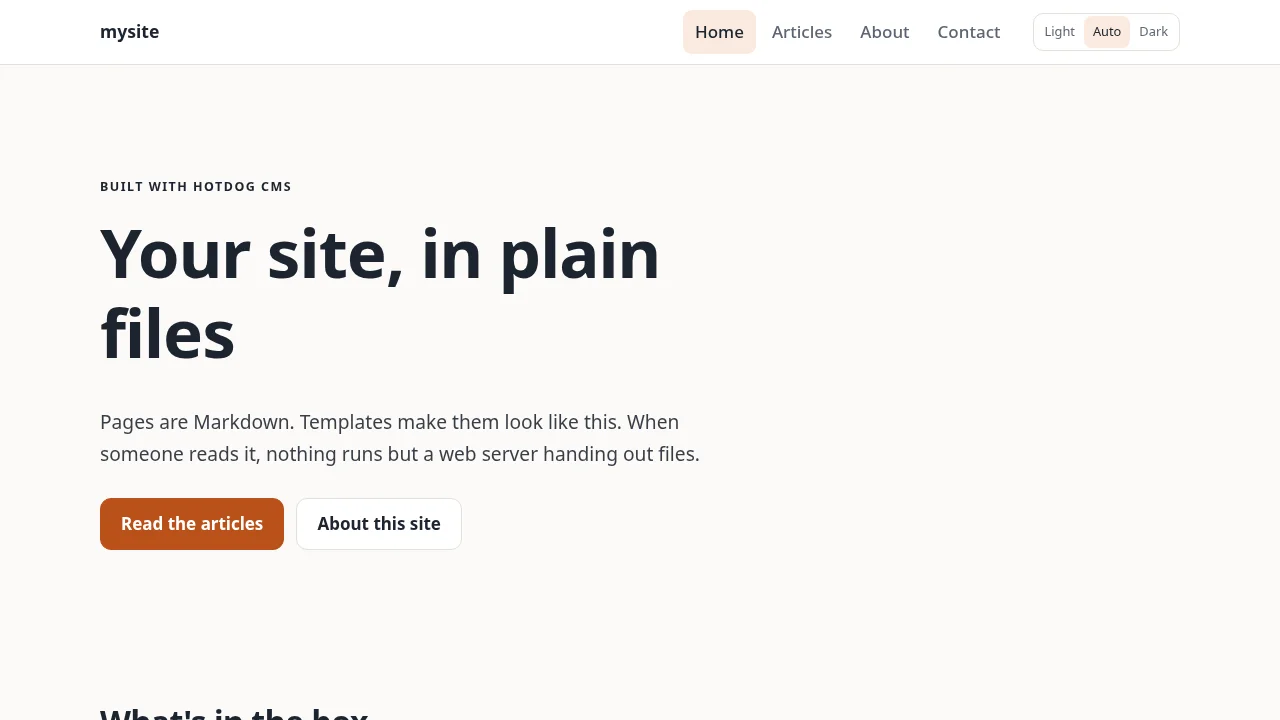
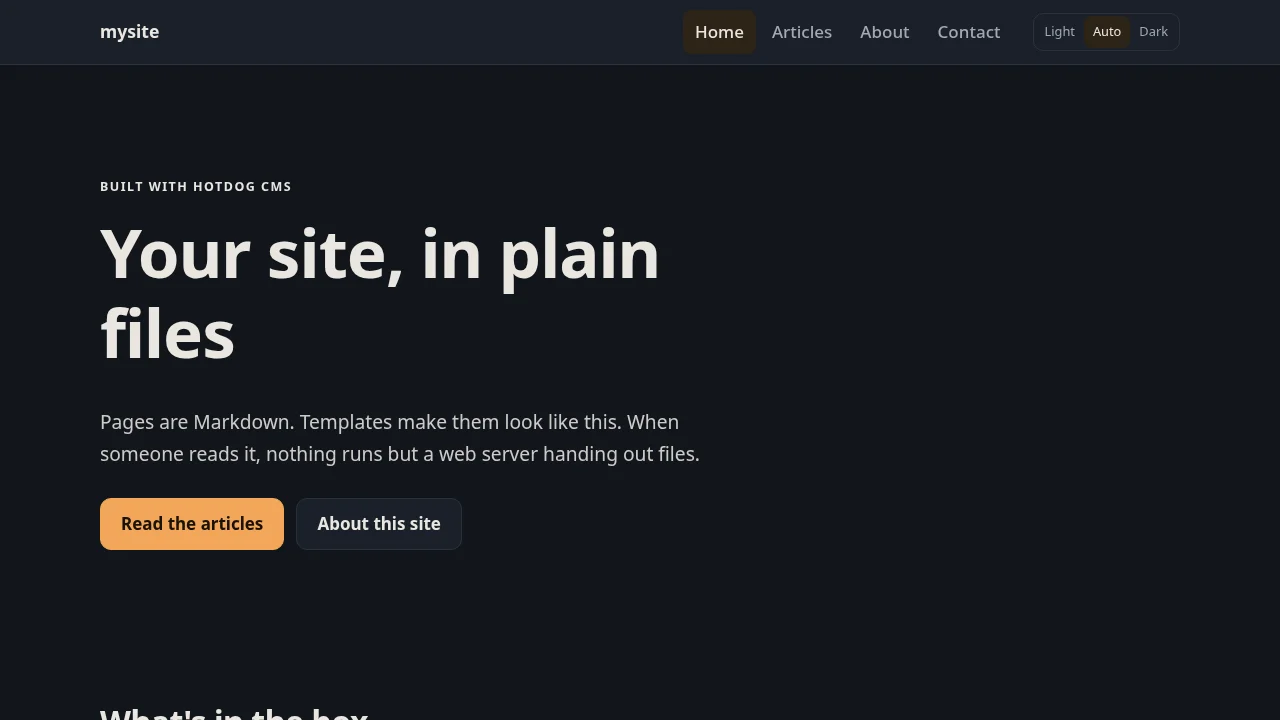
It follows your computer's light or dark setting, and the Light / Auto / Dark switch at the top lets visitors choose:
3. Change something
Leave the preview running. Open content/about.md in a text editor (see Which text editor? below), change a sentence and save. The browser reloads by itself and shows your change.
That's the whole loop: change a file, save, look. HotDog rebuilds the site each time you save.
4. Stop the preview
Go back to the terminal and press Ctrl+C. The preview stops; your files stay as they are. Run hotdog-cms serve again whenever you want it back.
Which text editor?
Any editor that saves plain text works. Avoid word processors like Word or Pages, which add formatting HotDog can't read.
- Visual Studio Code (Windows, macOS, Linux) is free and shows Markdown nicely.
- TextEdit on macOS works if you choose Format → Make Plain Text.
- Notepad on Windows, or Text Editor on Linux, are fine for small changes.
Rather not edit files at all? The editor does all of this in your browser, once your site is in git.
What's next
- The site's folder: what each file and folder is for.
- Settings: give the site its real name and address.