

Moving from WordPress
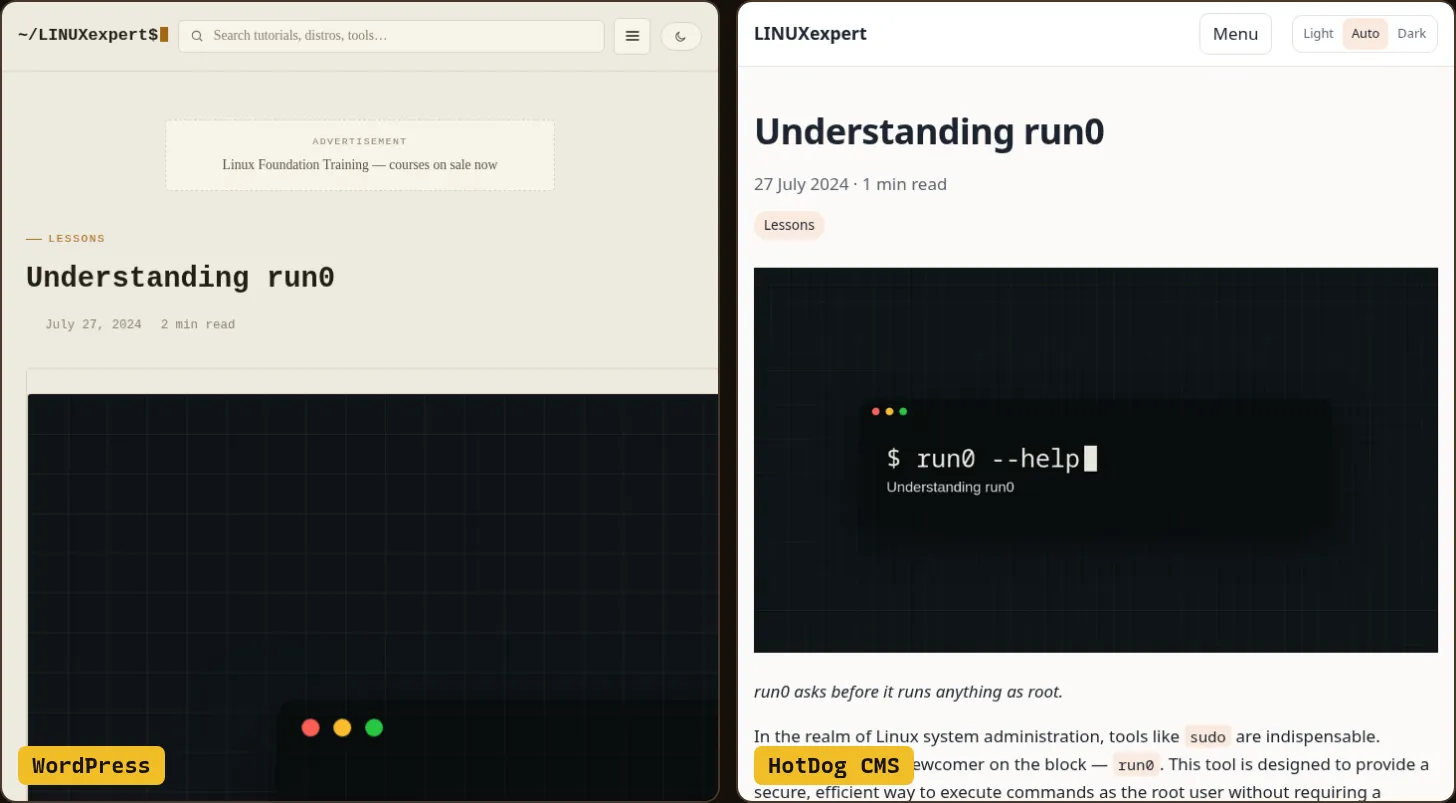
Bring a WordPress site across with one command: posts, pages and pictures as plain files, with every old address still working.
Prefer to watch? The WordPress tutorial shows all of this in three minutes.
Only move what's yours. HotDog's importers are migration tools, for moving a site you own, or have the rights to, onto HotDog CMS. They're not for copying anyone else's site, posts or pictures. Every import says so when it starts, and again at the top of its report.
What comes across
- Posts and pages, as Markdown files, with their titles, dates, summaries, tags and categories, authors and featured pictures.
- Pictures, resized and cleaned like uploads in the editor.
- Every old address, as a redirect to its new page, so links people shared and search results keep working.
- Pages with sub-pages stay grouped.
What only WordPress could run (plugins, shortcodes like [gallery] in an export, page-builder layouts) can't come across as it was. The import keeps what it can, and the report lists the rest.
Nothing on your WordPress site is changed. The import only reads.
What you need
- HotDog CMS installed.
- Your WordPress site, still online. (No longer online? Use an export file: see below.)
1. Start a HotDog site
hotdog-cms new mysite
cd mysite
Give it your site's name and address in site.yaml (see Settings).
2. Import
Use your WordPress site's address:
hotdog-cms import wordpress -url https://your-old-site.example
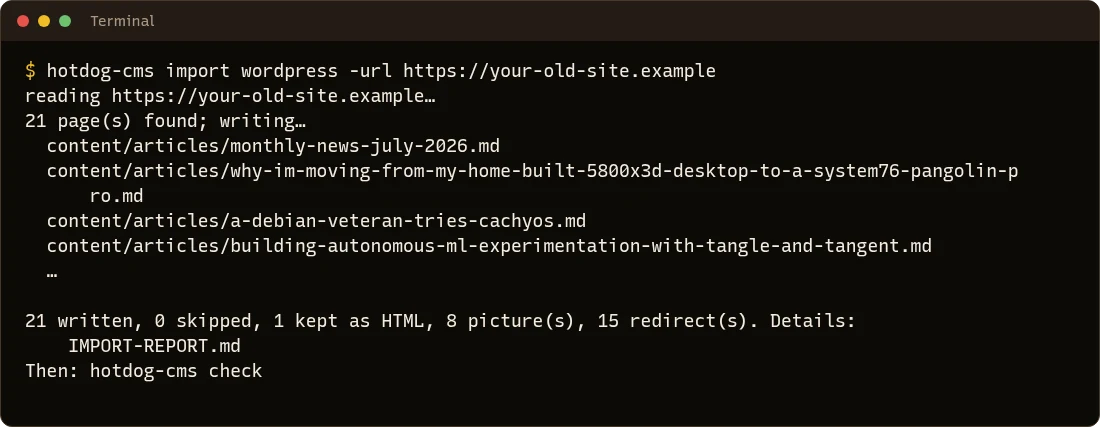
It reads your published posts and pages straight from the site. You don't need to log in, or install anything on WordPress.
Drafts and private posts too
Published posts are open to anyone; drafts and private posts need you to sign in. WordPress has Application Passwords for this: a password just for one program, that you can revoke.
-
In WordPress, go to Users → Profile, scroll to Application Passwords, type a name like
HotDog import, and choose Add New Application Password. Copy the password it shows. -
Give it to the import with your WordPress user name:
export HOTDOG_WP_PASSWORD='abcd efgh ijkl mnop qrst uvwx'
hotdog-cms import wordpress -url https://your-old-site.example -user yourname
(On Windows PowerShell:
$env:HOTDOG_WP_PASSWORD = '…'.) -
When it's done, revoke the password in WordPress. HotDog never saves it.
No longer online? Use an export file
In WordPress, Tools → Export → All content → Download Export File gives you an XML file. Import that:
hotdog-cms import wxr -file export.xml -url https://your-old-site.example
-url (the old address) lets it fetch pictures if they're still online. Without it, posts come across, and pictures keep their old addresses, which the report lists.
3. Check what came across
Read IMPORT-REPORT.md (see The import report), then run the checks:
hotdog-cms check
Then look at it:
hotdog-cms serve
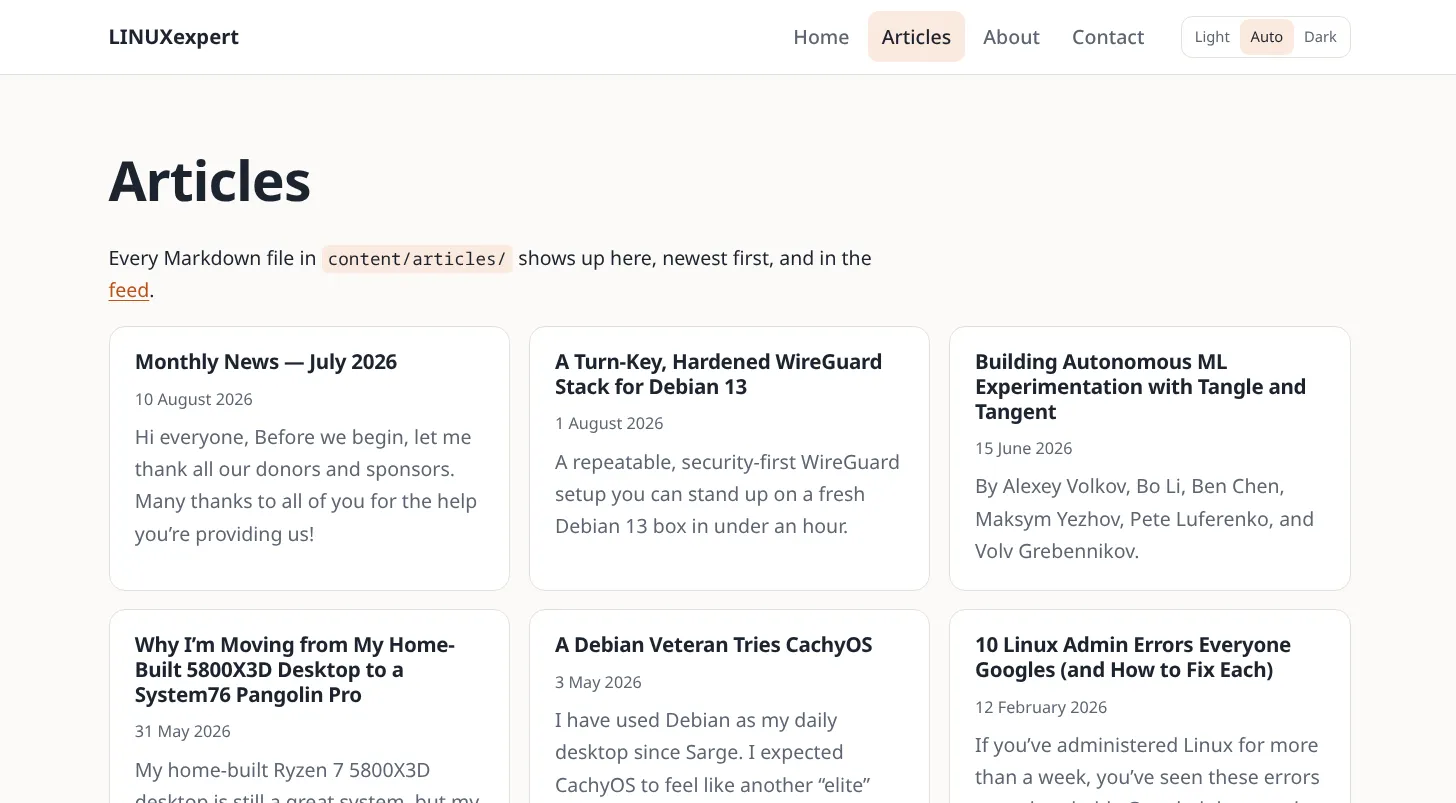
4. Tidy up
The template's own sample pages are still there beside yours. Delete the ones you don't need, such as content/articles/hello-world.md, the template's content/about.md if WordPress brought its own About page, and WordPress's privacy policy page if you'll use HotDog's (Privacy page). Run the checks again: if anything still links to a page you deleted, they say where, and you point the link at the new page.
5. Make it yours, and switch over
From here it's the same as any site: put it in git, open it in the editor, pick your look, and publish. When you're happy, point your domain at the new site and switch WordPress off.
Options
| Option | Meaning |
|---|---|
-url |
The WordPress site's address. Required. |
-user |
A WordPress user, for drafts and private posts (password in HOTDOG_WP_PASSWORD). |
-posts |
The collection posts go into (default articles). |
-site |
The HotDog site to import into (default: the current folder). |
-overwrite |
Replace pages that are already there. Without it, running the import again skips them. |