

Pictures in the editor
Upload pictures in the editor and they're resized, made lighter, and cleaned of hidden details. Every picture needs a description.
Put a picture in a page
In the page editor, choose Insert picture above the text (or in the visual editor's toolbar). Then either:
- upload a picture from your computer: choose the button, drop a file onto the window, or paste one you've copied; or
- pick one you've already uploaded, from the library.
Then describe it. The description (alt text) is what screen readers read out, and what shows if the picture can't load. Say what it shows: "A loaf of bread fresh from the oven". The editor won't insert a picture without one, unless you mark it as decoration, for pictures that add nothing to the words.
What happens to an upload
Every picture you upload is processed before it's saved, so you don't have to:
- Resized: large photos are made smaller, and extra sizes are made for phones (480, 960 and 1600 pixels wide). Visitors download the size that fits their screen.
- A WebP copy is made beside it when that's smaller, often by half. Browsers that understand WebP get it.
- Turned the right way up, if the camera stored it sideways.
- Cleaned: hidden details are removed, including the camera's information and the GPS location where it was taken.
It's saved in your site's static/media/ folder, in a folder for the month, as part of your draft.
The library
In the site view, Pictures shows every picture in the site, which pages use each one, and which aren't used anywhere.
Pictures in sections
Sections with a picture field, like the hero, have Choose and Upload buttons beside the field, and a What the picture shows field for its description:
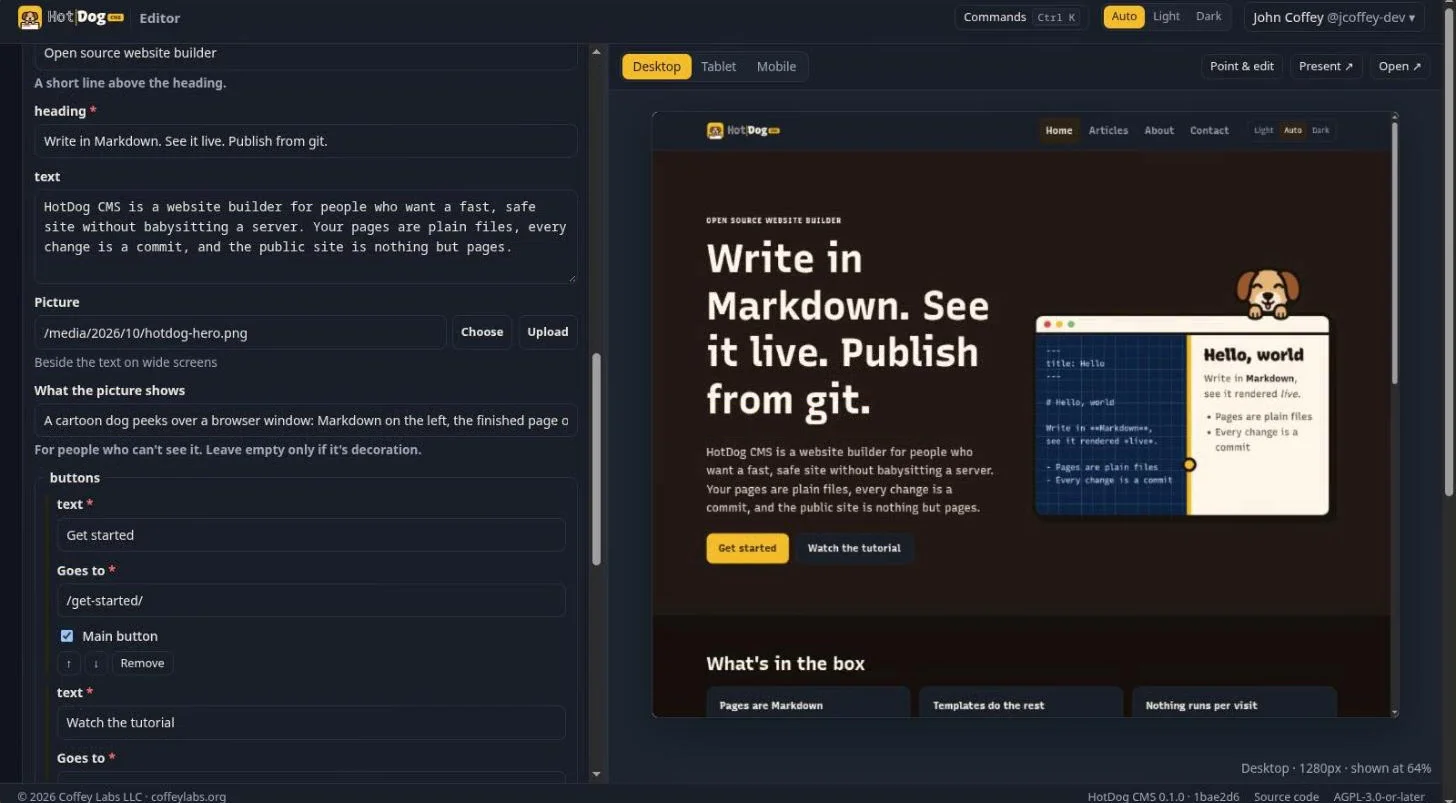
What can't be uploaded
SVG files are refused, because they can carry code. Use PNG or WebP for logos and drawings, and JPEG or WebP for photos.