

Files, commands and the console
For people who'd rather type: every file as text, every action by name, and a command line that speaks HotDog.
Files
In the site view, choose Files to see every file in the site, and open any text file to edit it as it is. Use it for things without a form, like the menus in site.yaml.
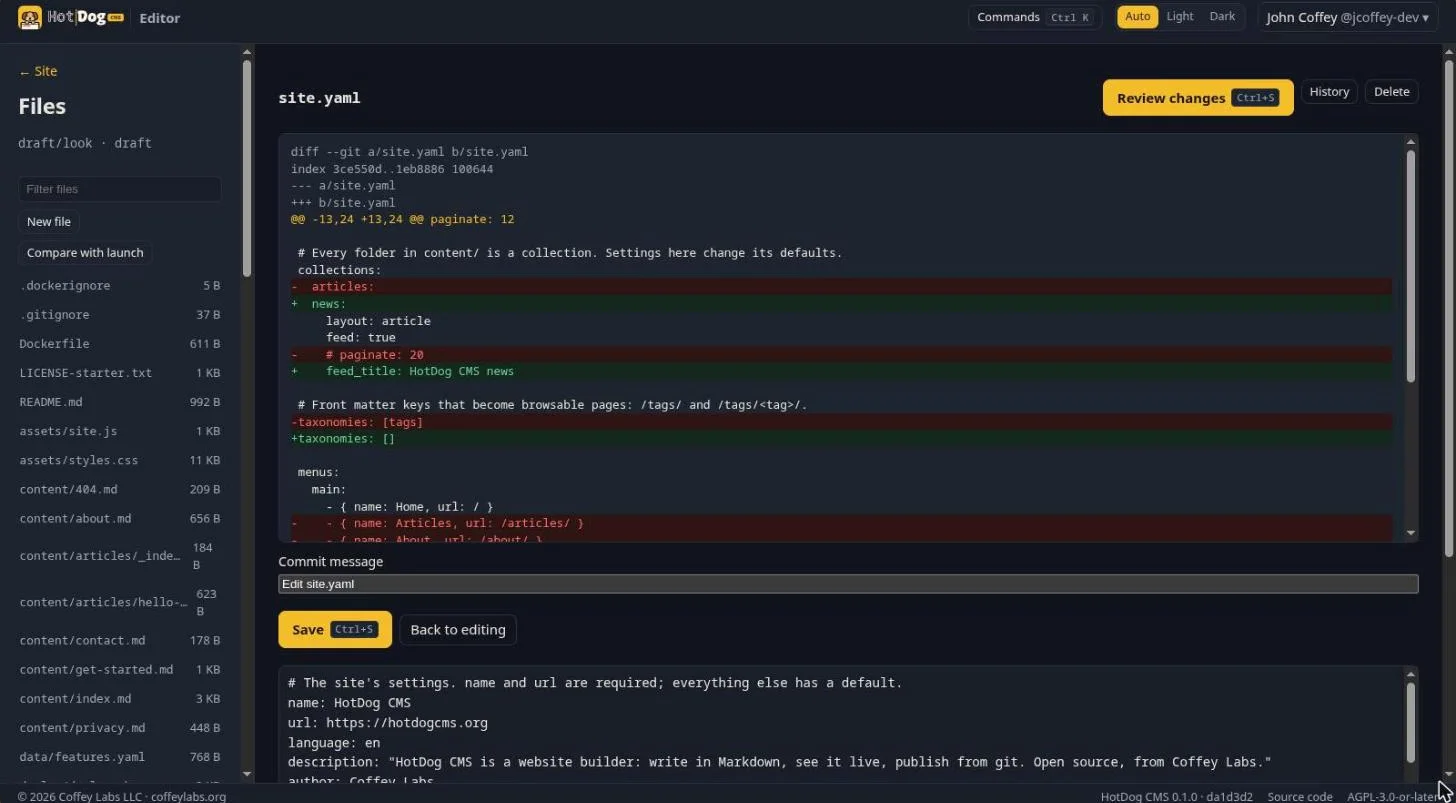
- Press Ctrl+S and the editor shows exactly what will change, removed lines in red and added lines in green. Press Ctrl+S again to save, with a message you can change.
- New file adds one; Delete removes one. Like everything else, both are changes on a draft.
- Each file has its own History, and Compare with the published branch.
public/and.gitcan't be changed here. Files that decide what runs when the site is published (publish.yaml, and pipeline files such as.github/and.gitea/) can be changed only by the repository's maintainers.
Commands: Ctrl+K
Press Ctrl+K (⌘K on a Mac) anywhere to find any action by name:
- open a page by typing part of its title;
- switch drafts;
- go to Files, Pictures or Look;
- save, submit for review, publish;
- change the theme, or add an account.
What's offered depends on where you are. Ctrl+S saves in the page editor, Look and Files.
The console: Ctrl+`
Press Ctrl+` (the key above Tab) for a command line that understands HotDog:
| Command | What it does |
|---|---|
status |
Where you are: the site, the draft, the checks. |
pages |
Every page. |
edit site.yaml, cat site.yaml |
Open or show a file. |
new articles "Title" |
A new page in a collection. |
check |
Run the checks. |
drafts, branch draft/about |
List drafts, or switch to one. |
diff, log |
What's changed on this draft; the history. |
review "Title", publish |
Submit for review; publish. |
as <login> |
Work as another of your signed-in accounts. |
theme dark |
Switch the editor to dark. |
Type help for the rest. The console runs nothing on the server: each command does what one of the editor's buttons does.
Several accounts
You can be signed in to up to eight accounts at once, on one platform or several, from the menu at the top right. When more than one of them can open a site, the site view says which you're working as, and lets you switch.