

Run the editor
Write a short settings file, set two secrets, and start the editor. Then sign in and open your site.
These steps run the editor on your own computer, for yourself. For a team, on a server, read these first, then Running it for a team.
What you need
- HotDog CMS and git installed.
- Your site on a git platform.
- A sign-in app on that platform, with the redirect URL
http://127.0.0.1:8190/auth/callback, and its client ID and secret.
1. Make a folder for the editor
Somewhere outside your site's folder, so its settings never end up in your site's repository:
mkdir ~/hotdog-editor
cd ~/hotdog-editor
2. Write editor.yaml
Make a file called editor.yaml in that folder. For GitHub:
forges:
  - host: github.com
    kind: github
    client_id: Ov23liABCDEF12345678     # yours, from the sign-in app
    client_secret_env: HOTDOG_GITHUB_SECRET
    discover: true
hostis your platform's address withouthttps://:github.com,gitlab.com,codeberg.org, or your own, likegit.example.org.kindisgithub,gitea,forgejo,gitlaborbitbucket. Codeberg isforgejo.client_idis the ID from your sign-in app.client_secret_envis the name of the variable that will hold the secret (step 3). The secret itself never goes in this file.discover: truelists every site you can reach on the platform. Leave it out to list only sites you name undersites:(see below).
3. Set the two secrets
The editor needs your sign-in app's secret, and a long random code it uses to lock people's sign-ins. Set them in the terminal you'll start it from.
Linux and macOS:
export HOTDOG_GITHUB_SECRET='the client secret from your sign-in app'
export HOTDOG_EDITOR_SECRET=$(openssl rand -hex 32)
Windows (PowerShell):
$env:HOTDOG_GITHUB_SECRET = 'the client secret from your sign-in app'
$b = New-Object byte[] 32; [Security.Cryptography.RandomNumberGenerator]::Create().GetBytes($b)
$env:HOTDOG_EDITOR_SECRET = ($b | ForEach-Object { $_.ToString('x2') }) -join ''
Keep the editor secret the same if you want to stay signed in when you restart the editor: print it once (
echo $HOTDOG_EDITOR_SECRET), keep it in your password manager, and set it from there next time. A new one signs everyone out, which does no harm.
4. Start it
hotdog-cms editor -config editor.yaml
Leave the terminal open: the editor runs until you press Ctrl+C. Open http://127.0.0.1:8190 in your browser.
5. Sign in and open your site
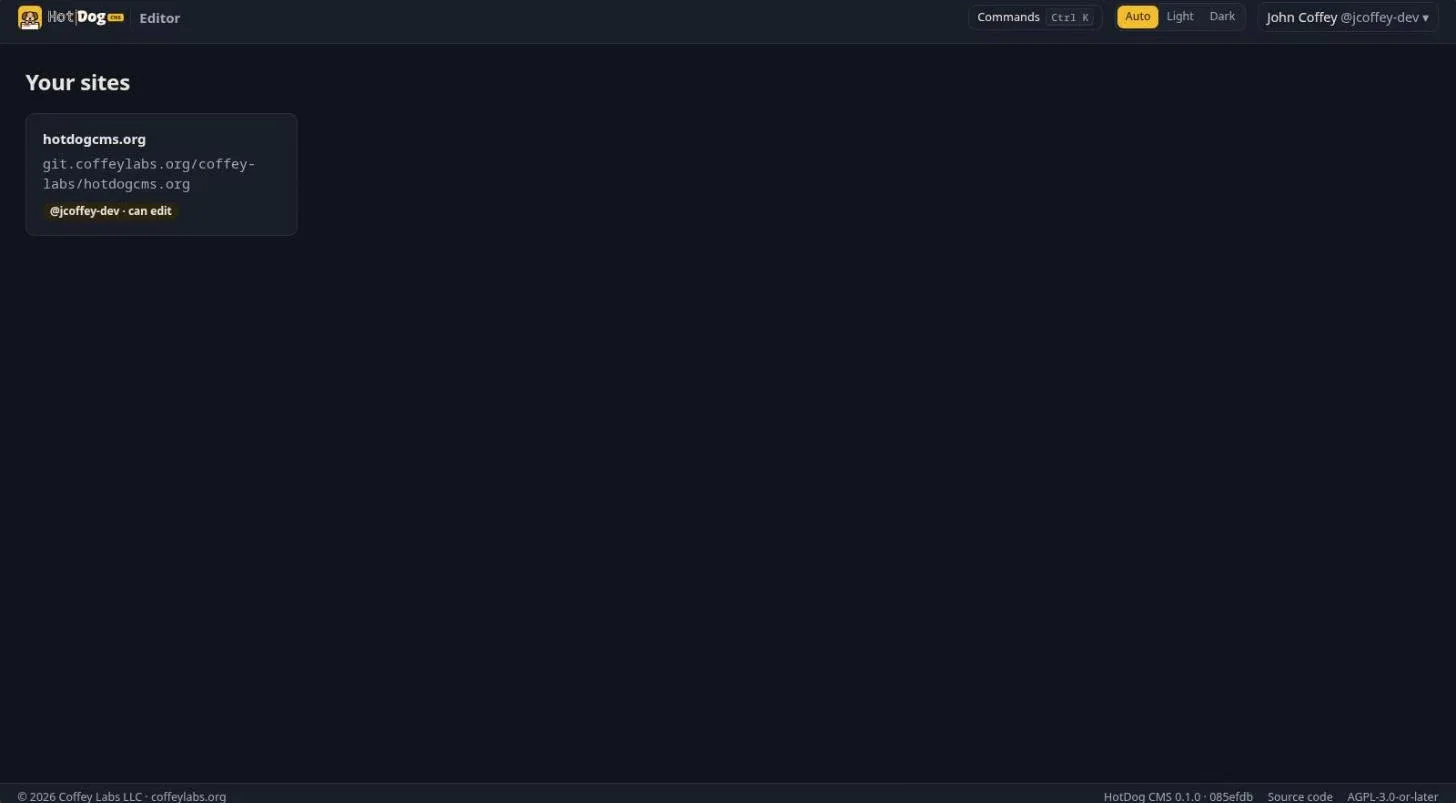
Choose Sign in with GitHub (or your platform). The platform asks whether to let your editor app see your account and repositories; choose Authorize. You're back in the editor, with your sites:
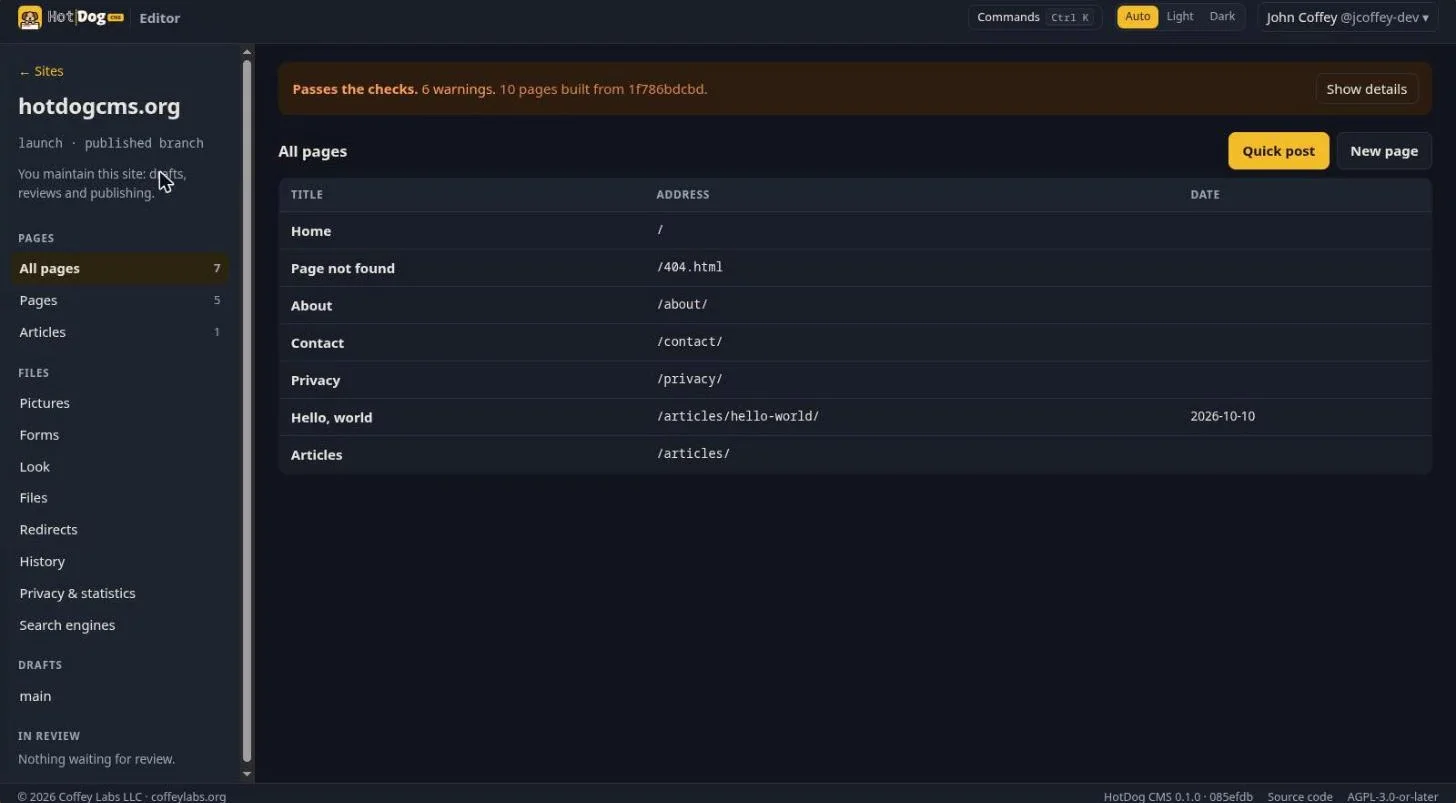
Choose your site. The editor copies it and opens the site view, with every page and whether the site passes the checks:
Naming your sites instead
To offer specific sites, rather than everything discover finds, list them:
sites:
  - name: Bakery on Main
    repo: https://github.com/you/bakery-site.git
    branch: main          # the branch your site publishes from
If something goes wrong
- "HOTDOG_EDITOR_SECRET must be set": step 3 didn't run in this terminal. Set it, and start again.
- "HOTDOG_GITHUB_SECRET isn't set": the same, for the platform's secret. The name must match
client_secret_envexactly. - The platform says the redirect URI doesn't match: the sign-in app's redirect URL must be exactly
http://127.0.0.1:8190/auth/callback. Open the editor at127.0.0.1, notlocalhost. - Your site isn't listed: the site needs a
site.yamlwith aurlin it, at the top of its default branch. Or name it undersites:.