

Look
Change your site's colors, font, corners and logo, in light and dark mode, with a live preview and a check that every color stays readable.
In the site view, choose Look. Your theme decides what can change; the template offers colors, the font, the corners and the logo.
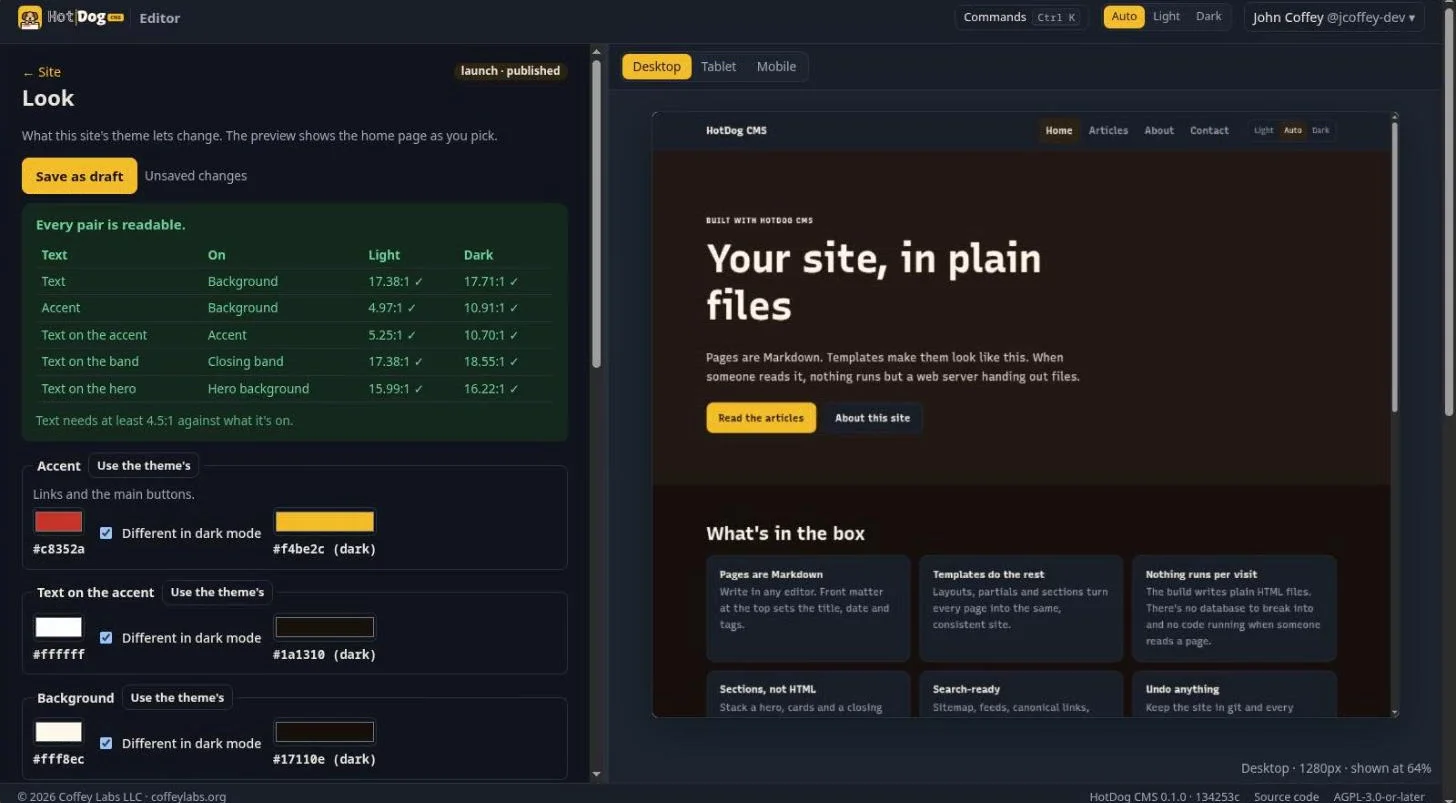
Colors
Each color has a box to pick it, and Different in dark mode with a second box for the dark-mode color. The template's colors:
| Color | What it colors |
|---|---|
| Accent | Links and the main buttons. |
| Text on the accent | Words on the main buttons. |
| Background | The page itself. |
| Text | Writing on the page. |
| Hero background, Text on the hero | The big opening at the top of the home page. |
| Closing band, Text on the band | The band near the end of a page. |
Use the theme's puts a color back to the theme's own.
Readable, always
The table at the top checks every pair that must stay readable, like text on the background, in light and in dark mode, as you pick. Each needs a contrast of at least 4.5 to 1, the level the accessibility guidelines ask for. A pair that falls short turns red, and the checks won't publish it, so a pretty color can never make your site hard to read.
Font, corners and logo
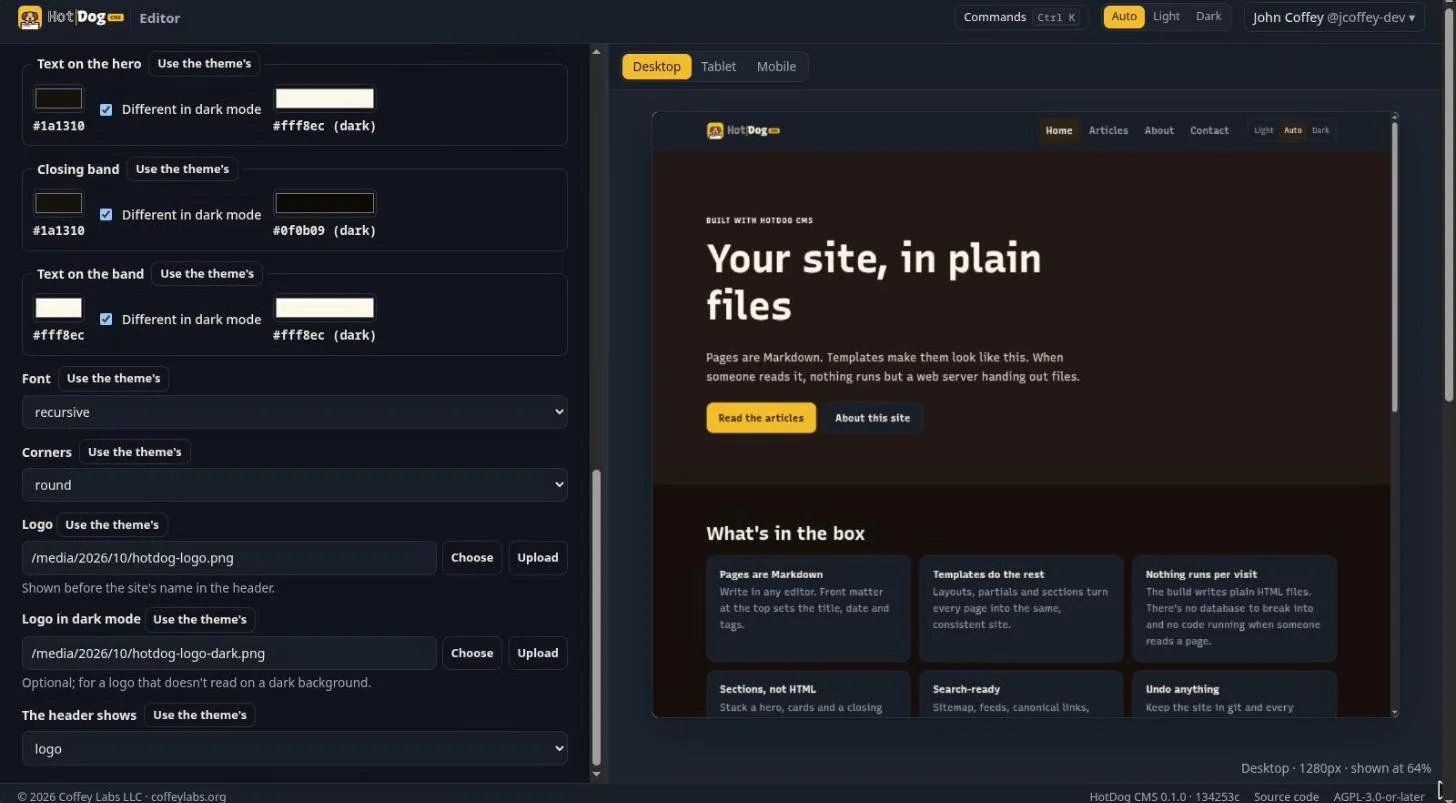
- Font: the template offers Inter, the system's own font, a serif, a rounded font, and Recursive.
- Corners: sharp, soft or round, for cards, buttons and boxes.
- Logo: Upload a picture, or Choose one you've already uploaded. It goes in the header, before your site's name.
- Logo in dark mode: optional, for a logo that doesn't show up on a dark background.
- The header shows: the logo and the site's name, or the logo only, if your name is already in it.
The preview
The preview shows your home page with every choice applied. Desktop, Tablet and Mobile change its width. Switch your own computer between light and dark mode (or use the site's switch in the preview) to see both.
Save
Save as draft saves your look to a draft, like any change, and Submit for review asks someone to look before it's published. See Review and publish.
In the files, your choices are saved under
look:insite.yaml. Theme builders decide what's on offer inlook.yaml: see Themes and sections.