
Edit a page
Open a page, change it with forms or as text, watch the preview update as you type, and save it to a draft.
Open a page
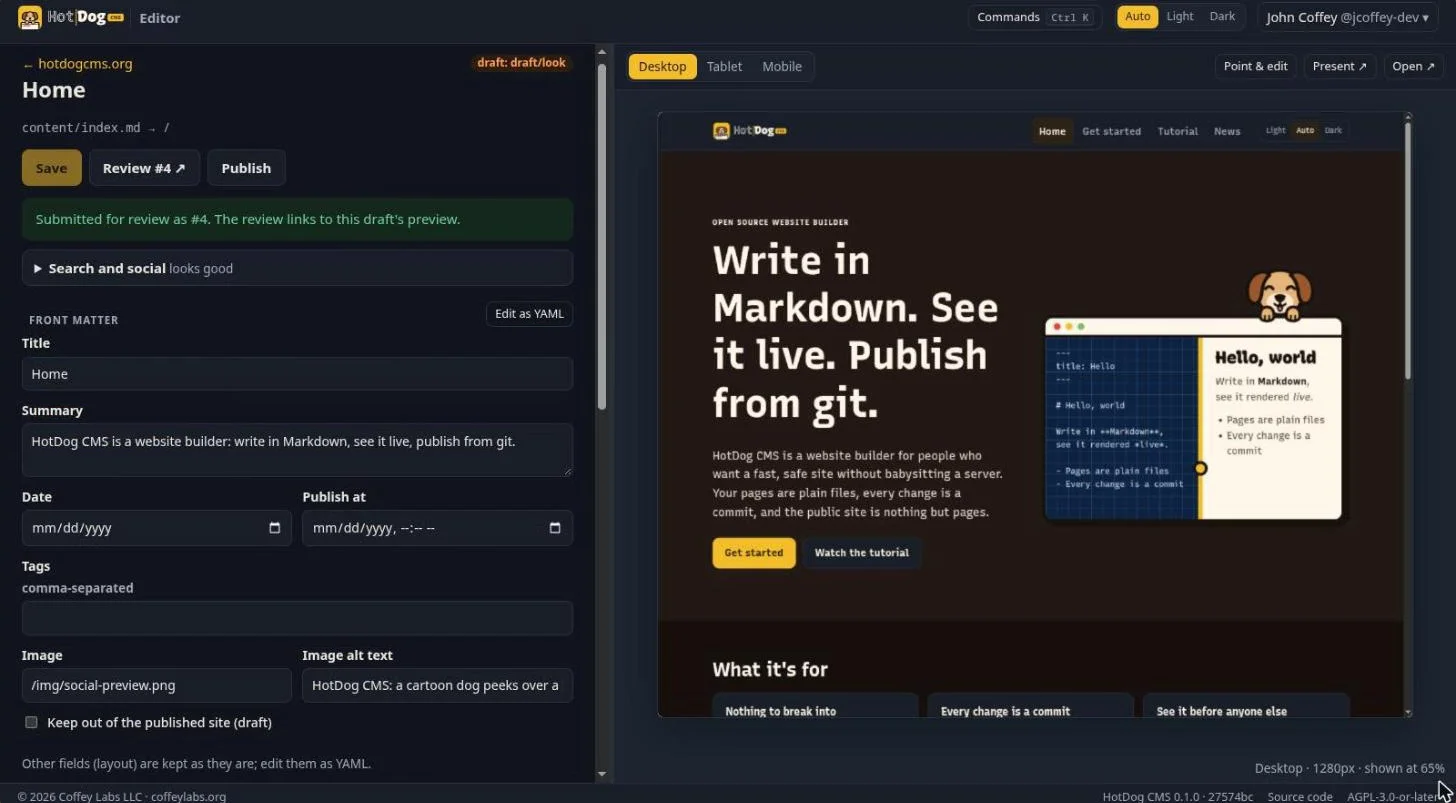
In the site view, choose a page from the list. The page editor opens: the page's settings and text on the left, a live preview on the right.
The preview
The preview shows the page exactly as it will look, built by the same program that builds your live site, and updates as you type.
- Desktop, Tablet, Mobile at the top switch the preview's width, so you can see the page on a phone.
- Point & edit: turn it on, then click any text in the preview to jump to it in the editor.
- Present opens the preview in a tab of its own, full size, and keeps it up to date while you edit.
- Open opens the preview in a new browser tab.
The page's settings
At the top are the page's front matter fields, as a form: Title, Summary, Date, Publish at (to schedule it), Tags, Image and Image alt text for link previews, and Keep out of the published site (draft). See Pages and articles for what each does.
Search and social, just above, shows the page as a search result and as a link preview, from what it really renders, and says plainly if a title or summary is missing or too long.
Pages made of sections
On a page made of sections, like the home page, each section is a card with a form. Fill in the fields, and the preview follows:
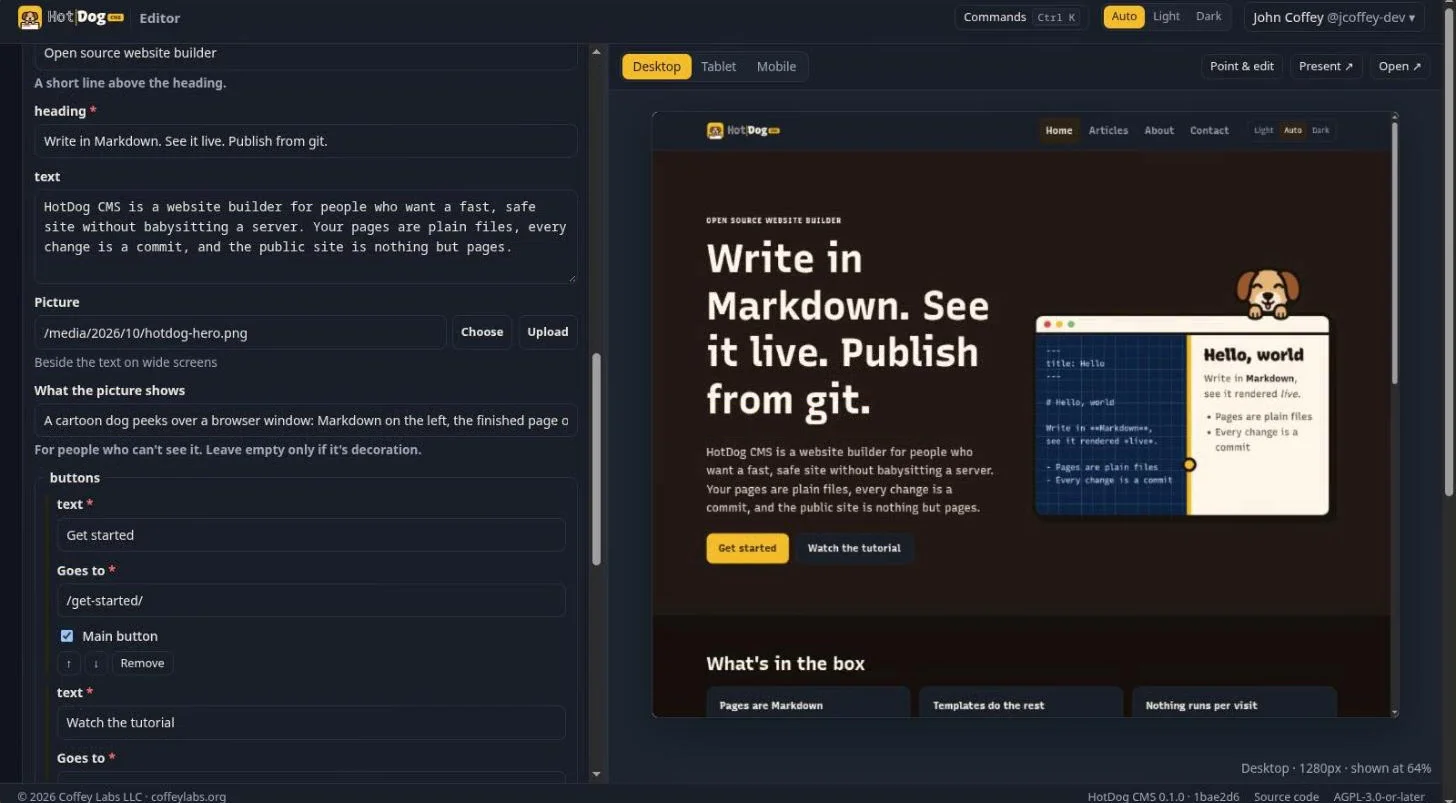
- Add a section from the library at the end of the list.
- Move, duplicate or remove a section with the buttons on its card.
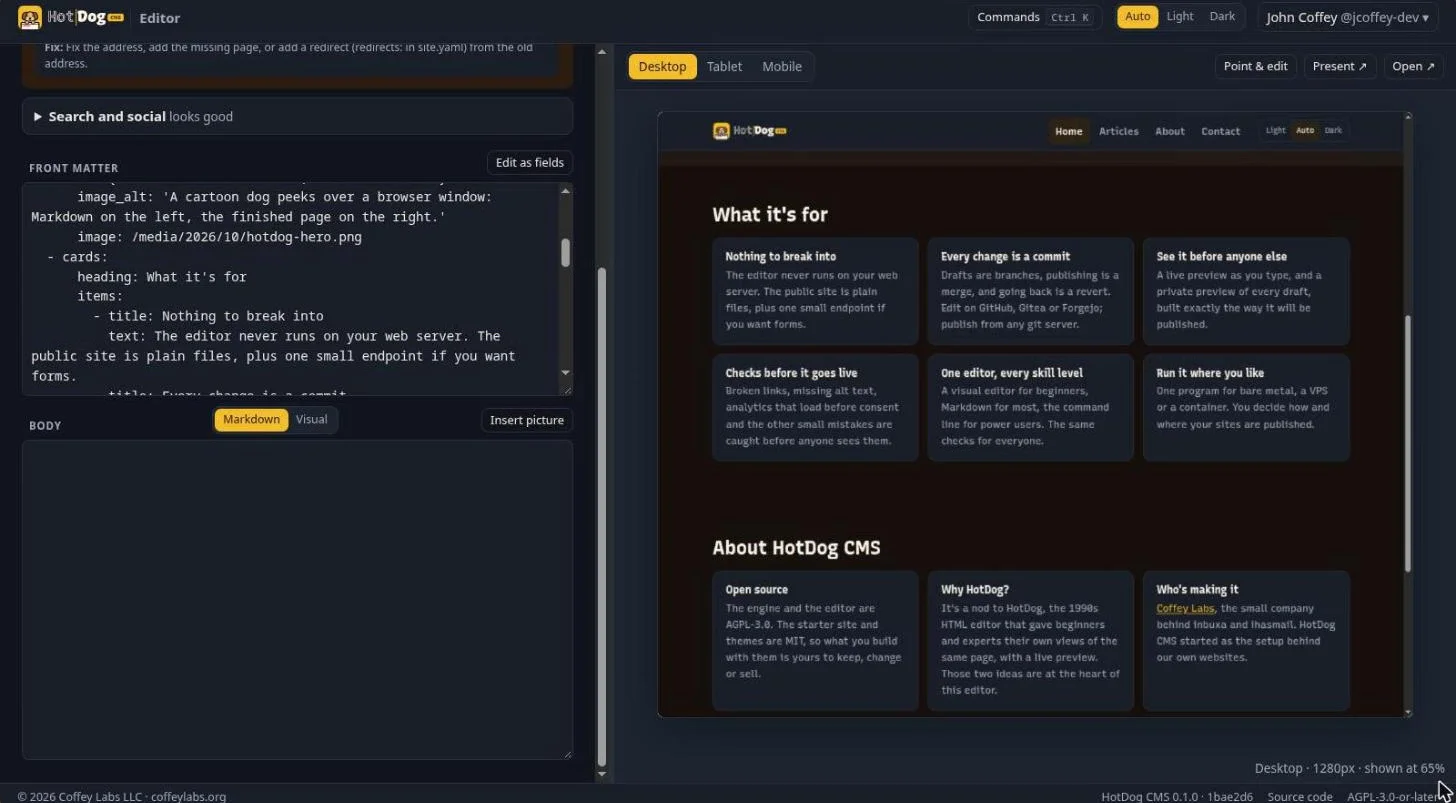
- Edit as YAML shows the same front matter as text, for when typing is quicker:
Visual or Markdown
The page's text can be edited in two ways, with the switch above it. The editor remembers your choice in this browser.
- Visual works like a word processor: a toolbar for headings, bold, links, lists, quotes and pictures, and the usual shortcuts (Ctrl+B, Ctrl+I, Ctrl+Z).
- Markdown shows the text as written, for people who like Markdown.
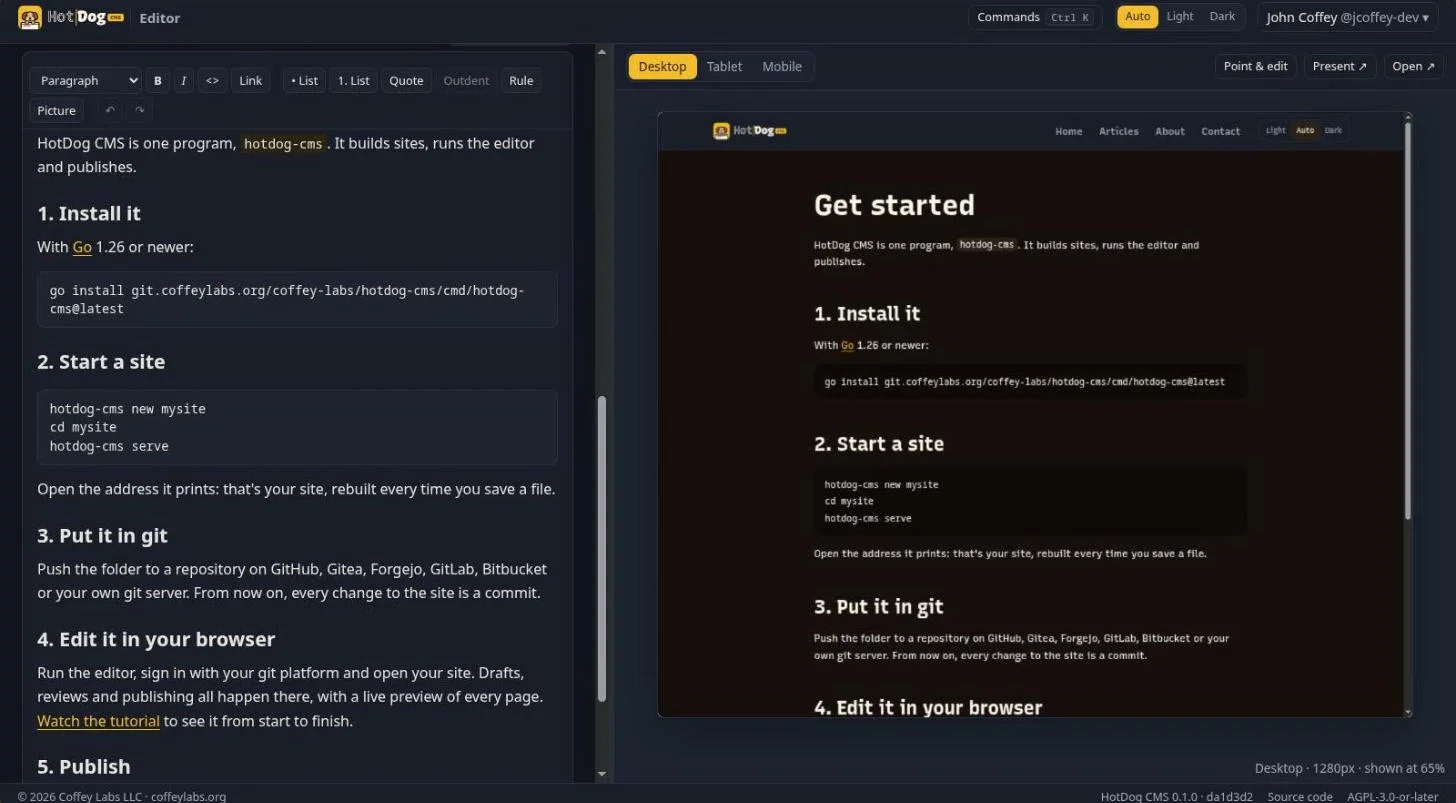
Either way, the page is saved as plain Markdown, and only what you changed is rewritten. Anything the visual editor can't show exactly (tables, raw HTML) appears as a gray block marked Kept as written; switch to Markdown to change it.
Save
Choose Save (or press Ctrl+S). The first time, the editor makes a draft for your change, named after the page, and saves to it:
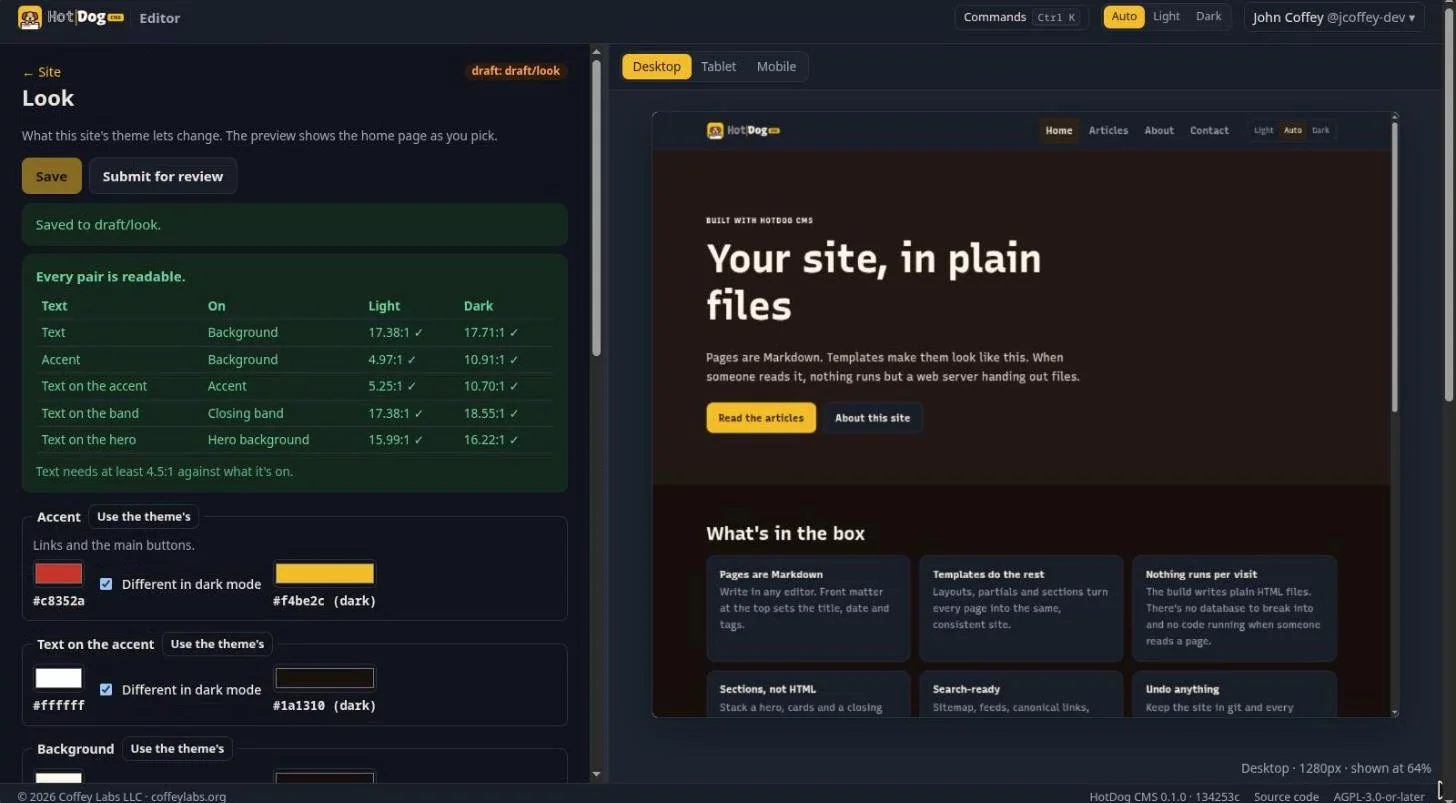
The live site doesn't change. You can keep working on the draft, close the browser and come back, or ask someone to review it. When it's ready, publish it.
The drafts you're working on are listed in the site view, under Drafts. Choose one to keep working on it, or Back to the published branch to see the site as it is.
Add a page
In the site view, choose New page. Pick where it goes (the top level, or a collection such as Articles) and give it a title:
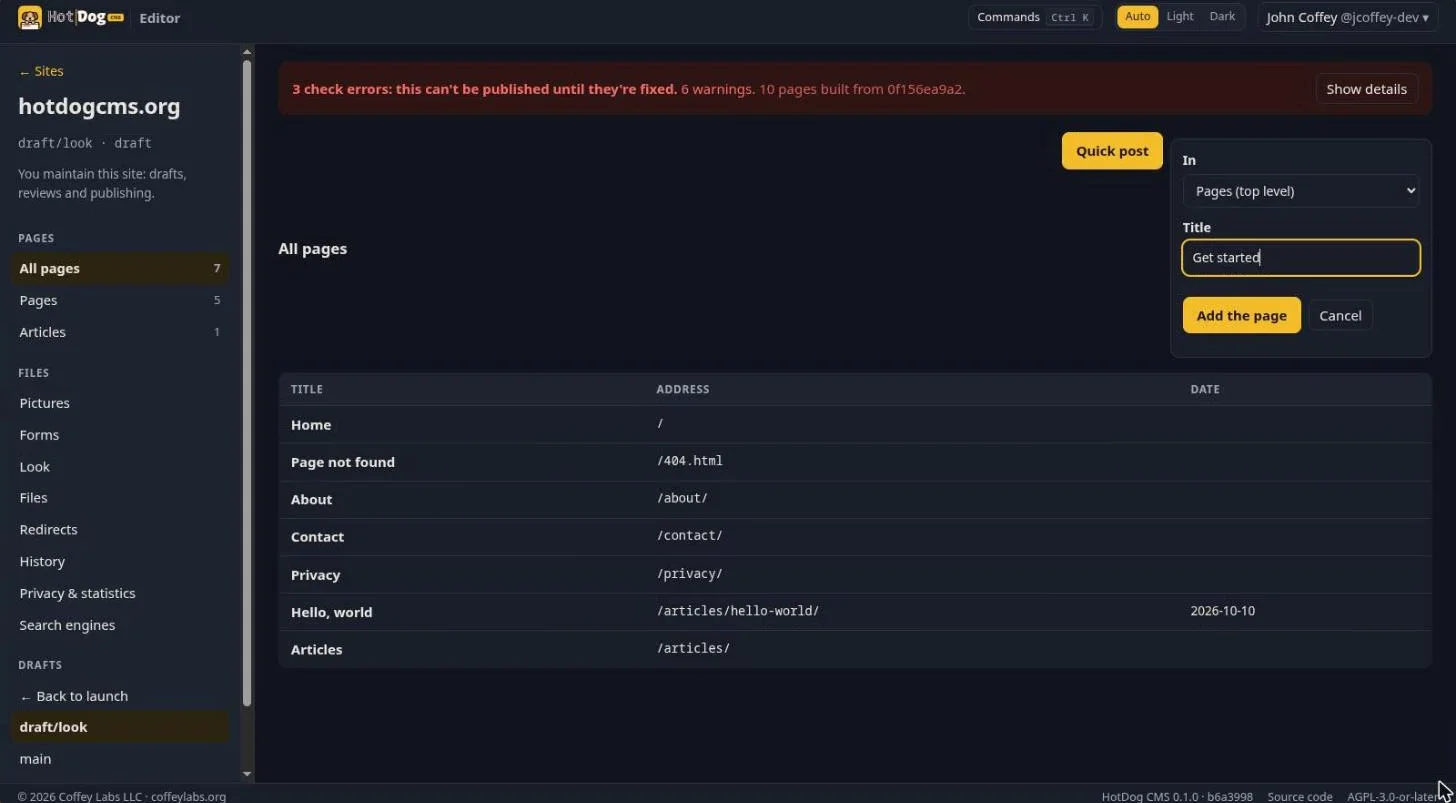
The page is made from that collection's template, on your current draft, and opens in the page editor.
Move or delete a page
- Move… gives a page a new address. The old address redirects to the new one, so no links break.
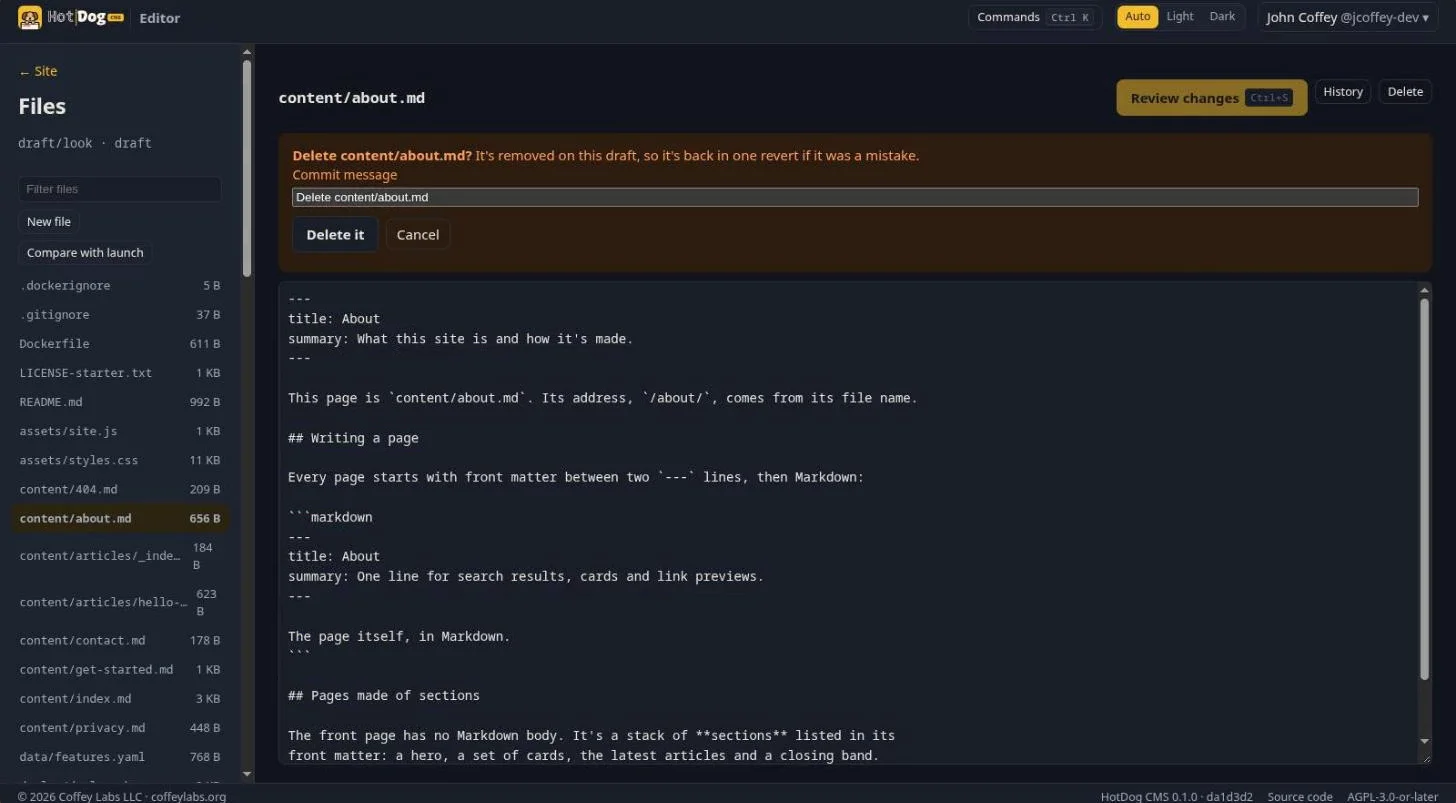
- Delete removes it on your draft. Like everything else, it's a change you can undo: