

Pages and articles
Every page is a Markdown file in content/. Its place decides its address, and a few lines at the top decide its title, date and summary.
A page is a file
Every page of your site is one file in content/, ending in .md. Here's the template's About page, content/about.md:
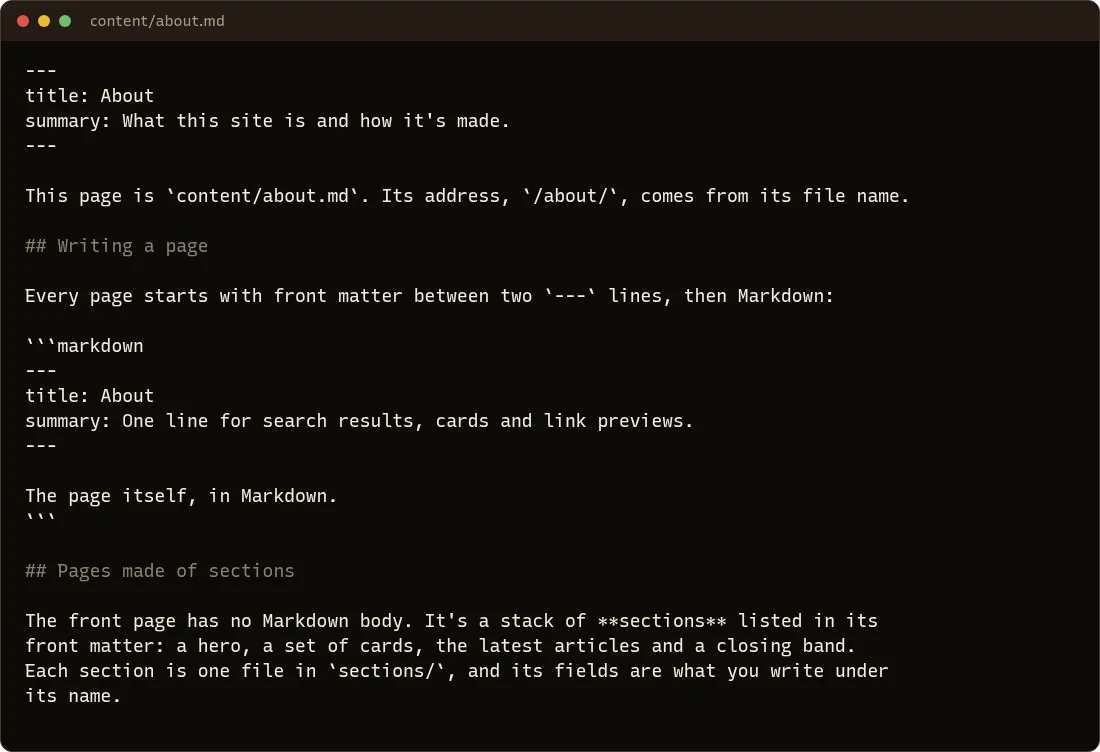
It has two parts:
- Front matter, between the two
---lines at the top: settings for the page, written in YAML.titleis the page's name;summaryis the one line search results and link previews show. - The body, after the second
---: the page itself, written in Markdown.
Where it goes decides its address
| File | Address on your site |
|---|---|
content/about.md |
/about/ |
content/opening-hours.md |
/opening-hours/ |
content/services/catering.md |
/services/catering/ |
content/index.md |
/ (the home page) |
Use lowercase letters, numbers and dashes in file names, no spaces: opening-hours.md, not Opening Hours.md.
Add a page
-
Make a new file in
content/, for examplecontent/opening-hours.md. -
Give it front matter and a body:
--- title: Opening hours summary: When we're open, including holidays. --- We're open every day except Sunday. -
Save. With
hotdog-cms serverunning, openhttp://127.0.0.1:8140/opening-hours/to see it. -
Add it to the menu if people should find it from every page: see Menus and links.
Articles: pages with dates
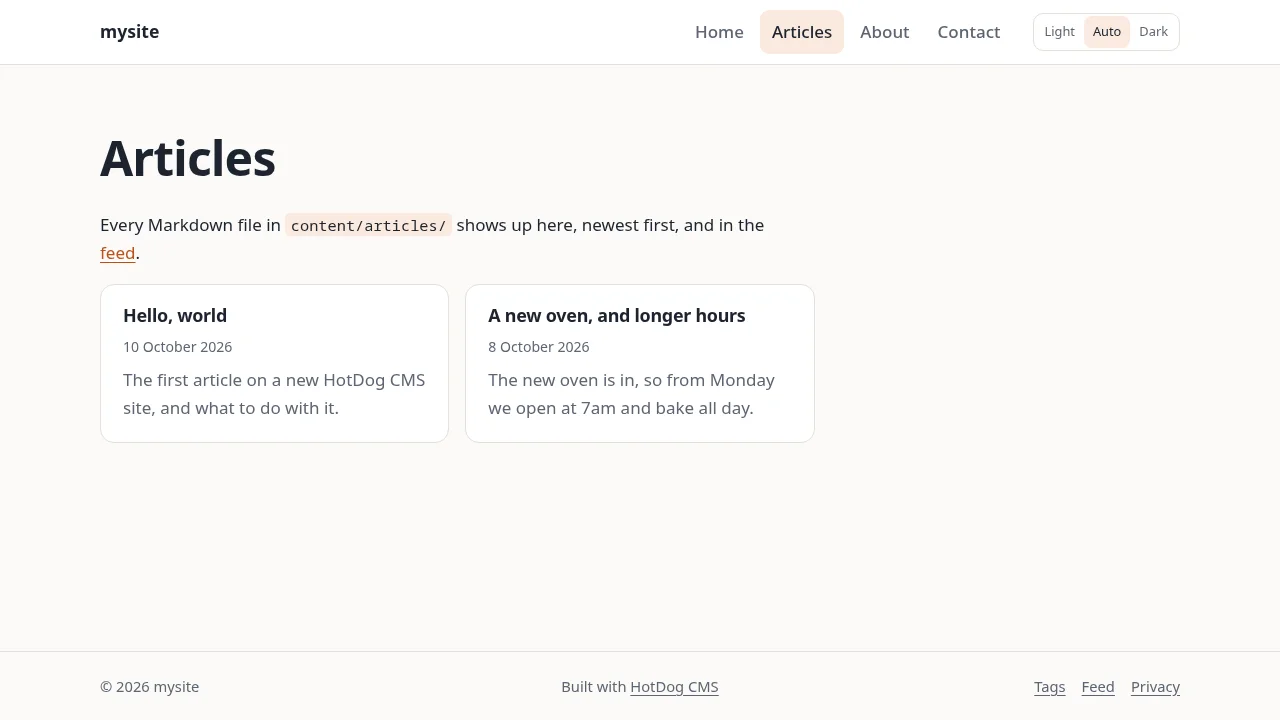
A folder in content/ is a collection. The template has one, content/articles/, for news and blog posts. A page in a collection gets more than a plain page:
- a date, shown on the page and used to sort the list, newest first;
- a place on the collection's list page (
/articles/) and the home page's latest articles; - a place in the collection's news feed, which feed readers follow;
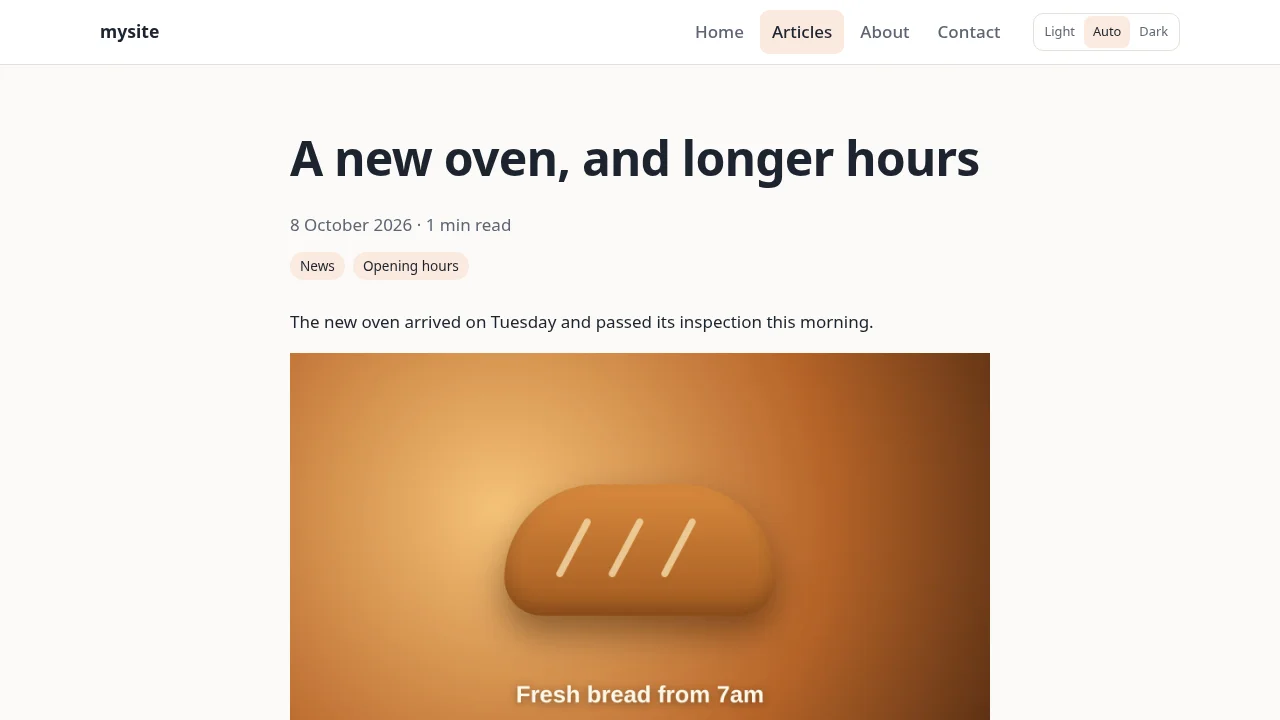
- tags, each with its own page (see Tags);
- a reading time, and links to the previous and next article.
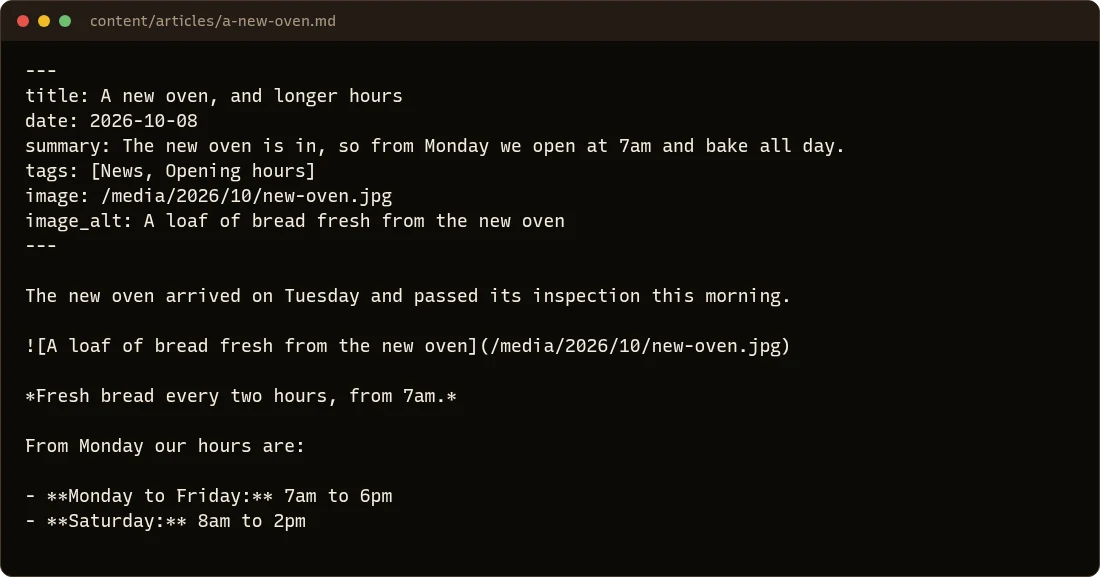
An article's front matter adds a date, and usually tags and a picture for link previews:
And here it is on the site:
Want another collection, like
news/orrecipes/? Make the folder incontent/and put pages in it. To give it a feed or change how it's sorted, add it undercollections:insite.yaml; see the site.yaml reference.
The front matter you'll use most
| Key | What it does |
|---|---|
title |
The page's name, at the top of the page and in browser tabs. Required. |
summary |
One sentence for search results, lists and link previews. Keep it under about 160 characters. |
date |
When it was written, as 2026-10-08. Articles need one. |
updated |
When it last changed meaningfully, shown alongside the date. |
tags |
Subjects, as a list: tags: [News, Opening hours]. |
image, image_alt |
The picture link previews show, and a description of it for people who can't see it. |
draft |
draft: true keeps the page off the published site. |
Every key is in the front matter reference.
Hide a page while you work on it
Add draft: true to its front matter. hotdog-cms serve still shows it, so you can look at it, but hotdog-cms build, check and publish leave it out. Take the line away, or set it to false, when it's ready. To publish it at a set time instead, see Scheduling.
Remove a page
Delete its file. If other pages link to it, the checks tell you which ones, so you can fix them before you publish. If people might have saved its address, add a redirect to where it went.