

Sections
Some pages, like the home page, are built from blocks called sections instead of written as text. Here's how to stack them and fill them in.
The template's home page isn't written as a page of text. It's a stack of sections: a big opening, a row of cards, the latest articles and a closing band. Each is a ready-made block you fill in.
The sections in the template
| Section | What it shows |
|---|---|
hero |
The big opening at the top of a page: a small line above, a heading, some text, buttons, and optionally a picture beside them. |
cards |
A heading and a grid of cards, each with a title and a line of text. |
latest |
The newest pages from a collection, such as your articles. |
text |
A heading and Markdown text. |
closing |
A band across the page with a heading, a line and a button, usually at the end. |
video |
A video with captions and a poster picture. |
Sections in the editor
In the editor, each section is a card with a form. Fill in the fields, and the preview beside it shows the page as you type:
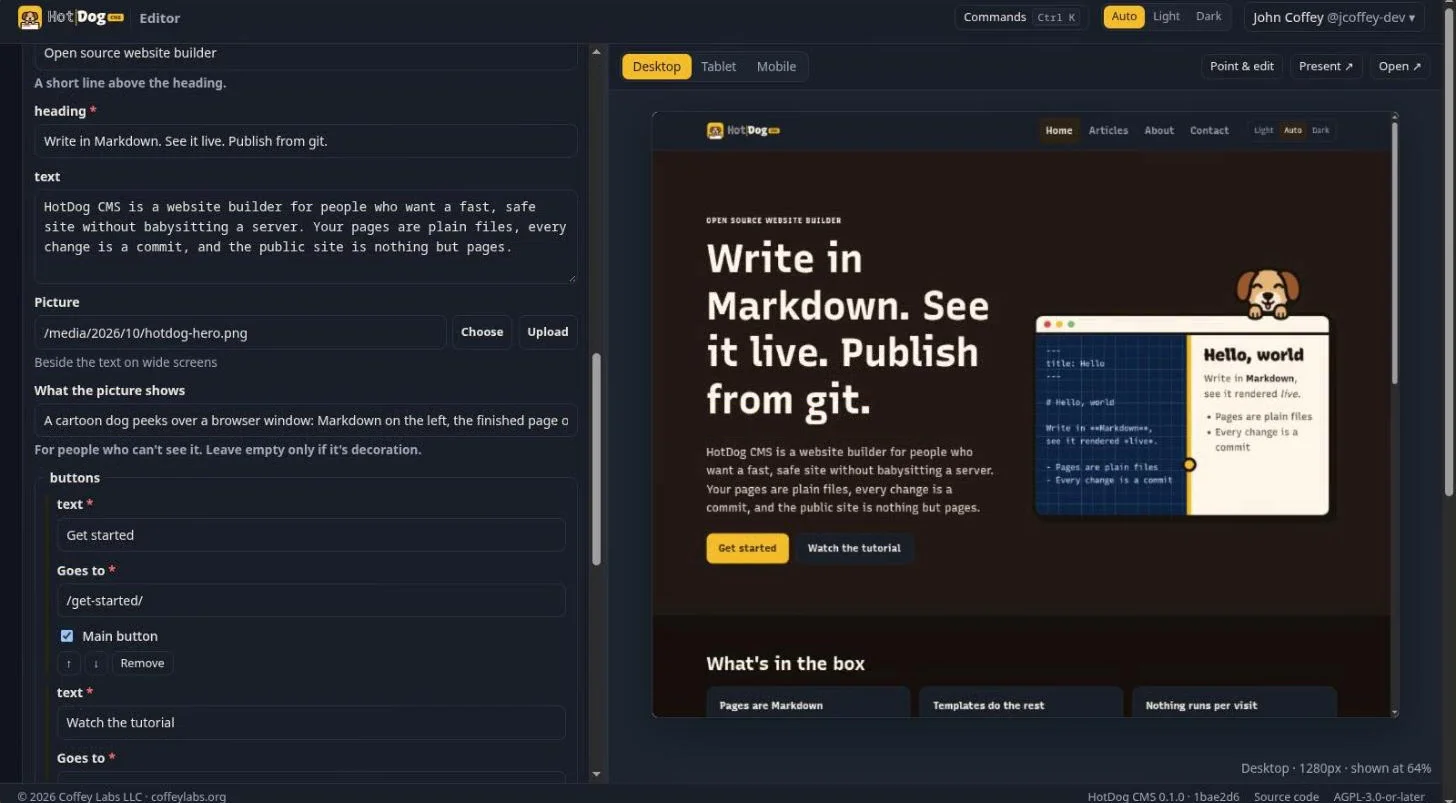
Add sections from the library, move them up or down, duplicate or remove them. See Edit a page.
Sections in the file
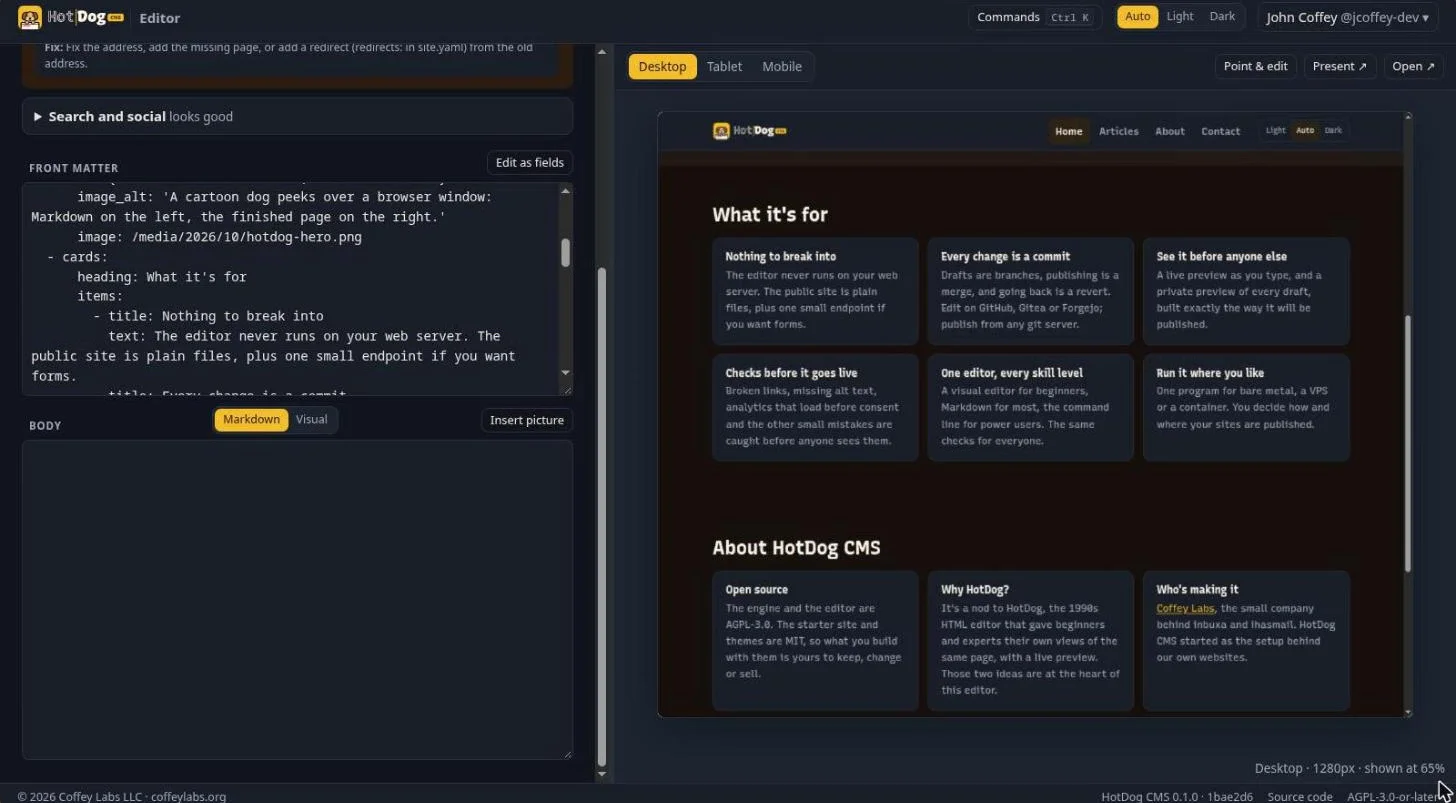
The same page as a file lists its sections in the front matter, under sections:. Here's a shortened home page:
---
title: Home
summary: Fresh bread every day on Main Street.
layout: landing
sections:
  - hero:
      eyebrow: Bakery on Main
      heading: Bread, baked all day
      text: Open from 7am, six days a week.
      buttons:
        - { text: See the menu, href: /menu/, primary: true }
        - { text: Find us, href: /contact/ }
  - cards:
      heading: What we bake
      items:
        - { title: Sourdough, text: Our own starter, three days in the making. }
        - { title: Pastries, text: Croissants and danishes from 7am. }
  - latest:
      heading: News
      collection: articles
---
layout: landingtells HotDog the page is made of sections.- Each section starts with
-and its name, and its fields go under it, indented. - Lines with
{ }are a short way of writing several fields on one line.
The editor's Edit as YAML shows exactly this, if you'd rather type:
What each section asks for
| Section | Fields |
|---|---|
| Hero | eyebrow (a short line above the heading), heading (required), text, image and image_alt (a picture beside the text on wide screens, above it on phones, and what it shows), buttons (each with text, href for where it goes, and primary for the main one) |
| Cards | heading, intro, items (each with title, text and an optional href link), or from: a file in data/ that holds the cards |
| Latest | heading, collection (default articles), count (how many, default 3) |
| Text | heading, body (Markdown) |
| Closing band | heading (required), text, button (text and href) |
| Video | heading, src (an MP4 in static/media), webm (an optional smaller copy), poster (shown before it plays), captions (a .vtt file), caption (text below the video) |
The editor marks the required fields in each form.
Sections on any page
A page with Markdown can have sections too, after its text: add sections: to its front matter as above. Pages using the template's page layout show the text, then the sections.
Making your own sections
Sections are template files in sections/. Writing new ones is for people comfortable with HTML: see Themes and sections.